
Edited by Tejas Telkar · Published · Updated
Short answer
Open NotchPop Calendar and allow calendar access if you want it to show events. It reads calendars available through macOS EventKit for the selected month. Select the day you need, then inspect the event and any recognized meeting link.
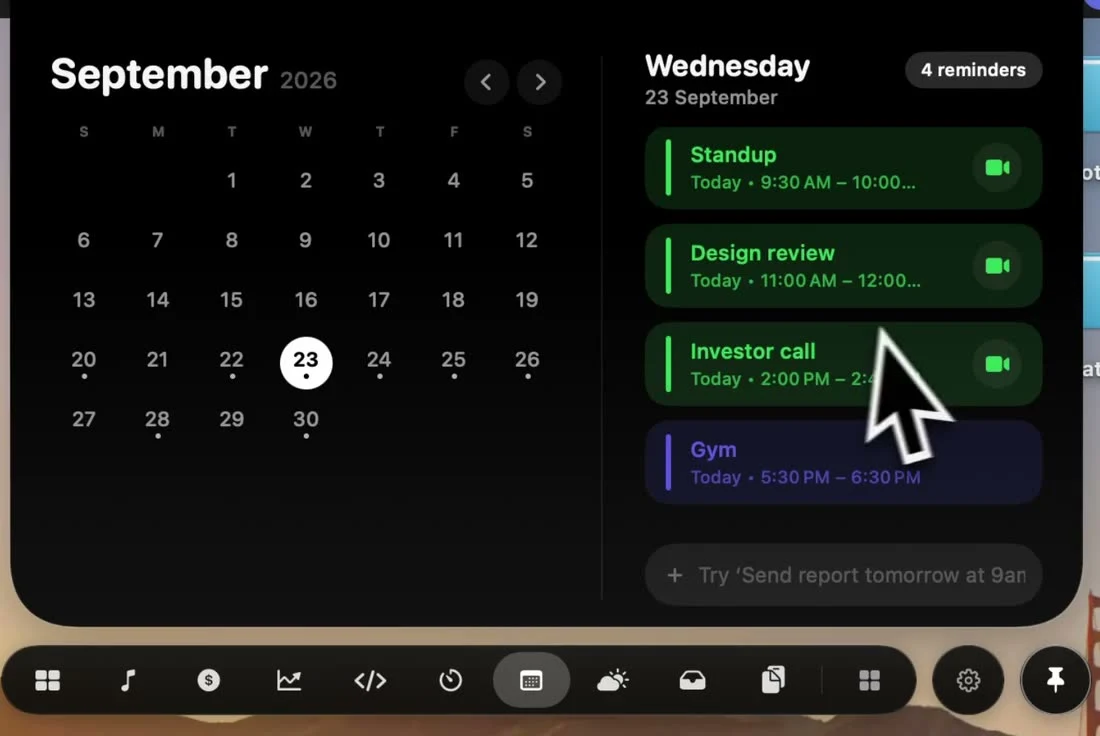
Start with the calendar already on the Mac
A meeting stored in an online account must be available to the Mac's calendar system before this workflow can read it. First check that the event appears in the calendar app and account you actually use on the machine. A website showing an invitation does not by itself prove that the same calendar is synchronized locally.
NotchPop uses calendar access to show agenda information. Grant it only if you want that capability; other island tools do not require the agenda to be connected. An access-denied state is different from an authorized calendar with no events on the selected date.
Select the date and inspect the event
- Open Calendar in NotchPop and choose Connect Calendar when prompted.
- Review and complete the macOS calendar permission flow if appropriate.
- Use the month controls and select the day you want.
- Check the event title, time and calendar, then use a meeting action only when the intended link is present.
Jump back to today when you have been browsing another month. A correct empty list for a different selected day can look like missing data if the date is overlooked. All-day events also deserve different interpretation from a timed call; read the actual event rather than assuming every row represents a meeting to join immediately.
Resolve missing events in order
Confirm permission, selected month and day, and whether the event is available in macOS Calendar. Refresh after correcting the relevant condition. If the event appears but has no join control, inspect its stored URL or notes; a title containing the word meeting is not enough to supply a valid destination.
The Google Meet guide covers opening a recognized link. For a small task you want to remember independently of a calendar account, use NotchPop reminders. Keep private event titles and invitation URLs out of public troubleshooting examples; a harmless sample event is sufficient to demonstrate a display issue.
Sources and editorial notes
Published by NotchPop, the maker of the app. macOS instructions and third-party claims are linked to the sources below. Settings and offers can change between versions. Read our editorial approach or send a correction.
