
Edited by Tejas Telkar · Published · Updated
Short answer
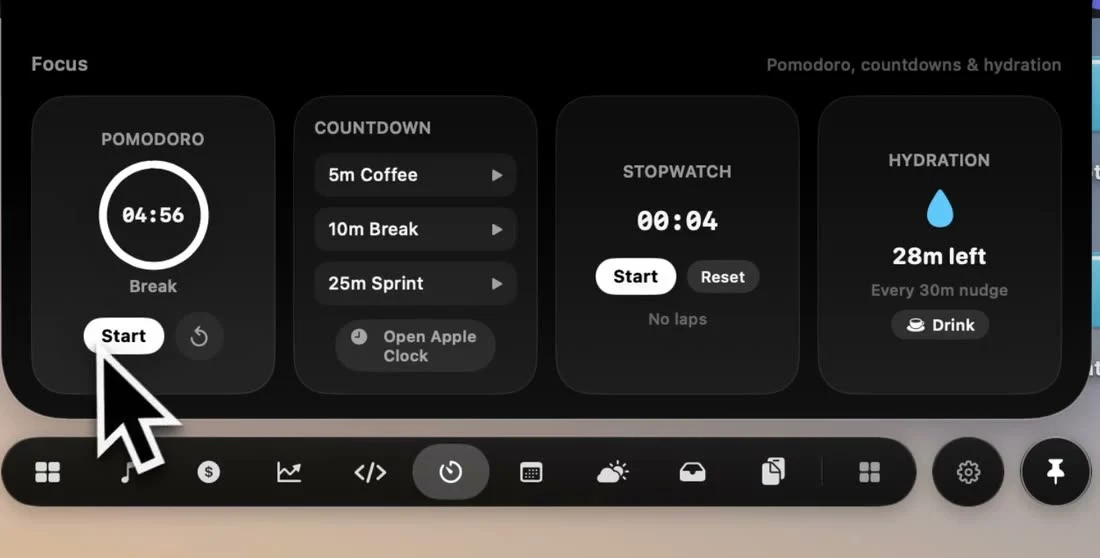
Open NotchPop's Focus tool and choose Start on the Pomodoro card for a 25-minute focus session. The app provides a five-minute break and shows the remaining time in the collapsed island. You can pause, reset or drag the duration control to adjust it. Quick countdowns, a stopwatch and a separate 30-minute hydration reminder sit alongside the Pomodoro timer.
Pick a timer for the job
A Pomodoro timer divides work into a focus interval and a break. NotchPop starts with 25 minutes for focus and five minutes for a break. Those defaults give you a place to begin; they are not a rule that every task must fit. A short review, a long build or an interrupted afternoon may call for a different duration or a different timing tool.
The Focus & Hydration tool contains four cards: Pomodoro, Countdown, Stopwatch and Hydration. Pomodoro is suited to a work-and-break rhythm. Countdown starts a single timed interval. Stopwatch measures elapsed time. Hydration provides a recurring reminder independent of the work timer. Choose the card that describes the question you are trying to answer before pressing Start.
Because the tool lives in the notch or floating island, you can inspect the time without keeping a timer window in front of your work. It works on compatible Apple Silicon Macs with macOS 14 or later, including displays without a physical notch. Our Dynamic Island setup guide explains the broader app installation and compatibility requirements.
Start a focus session
- Open NotchPop's island and select the Focus tool. Find the Pomodoro card and check whether its label says Focus or Break.
- Read the displayed duration. For a standard first session, keep the 25-minute focus interval.
- Choose one concrete task, such as drafting an outline or reviewing a small change. Open the files you need before starting.
- Press Start. Return to the task and use the collapsed island to glance at the remaining time when needed.
- When the session ends, respond to the notch alert and inspect the break state before starting the next interval.
Keep the first test simple enough to observe the controls. You are checking that Start begins the countdown, that the remaining time changes and that you can find the timer again after returning to another app. The website's interactive demo is a sample of the interface; running a timer there is separate from starting a session in the installed Mac app.
A task with a clear stopping point makes the timer easier to evaluate. Write down the outcome you want before starting, rather than expecting the countdown itself to decide what matters. If the task takes longer, use the session boundary to review your next step. The app does not promise that a particular interval will make every type of work faster.
Pause, reset and adjust the duration
The Pomodoro card changes its primary action between Start and Pause. Pause preserves the remaining interval for resuming. Reset stops the timer, returns it to the Focus state and restores the selected focus duration. Check the displayed label and time after using either control so you know what the next Start will run.
The duration area says Drag to set. Drag horizontally to adjust the current focus or break duration, then release to apply it. The interface previews the proposed minutes while dragging. An accessibility adjustment is also available for the duration control. Test a duration change while you can see the card rather than assuming a gesture changed a timer hidden elsewhere.
Choose an interval that fits the immediate task. A quick verification pass may need less time than a writing session. When you are trying a new setup, adjust one thing at a time so you can tell whether the duration or the task size caused a problem. Avoid changing the timer repeatedly just because a difficult task feels uncomfortable; use the next break to decide whether the task needs to be split.
The current controls allow focus durations from five to 120 minutes and break durations from one to 30 minutes. Changing a running duration preserves elapsed time and moves the deadline by the difference, rather than starting an entirely fresh session. If you want to discard the existing session and begin again, use Reset deliberately and check the resulting time before pressing Start.
For example, extending a 25-minute focus interval to 30 minutes after some work has elapsed adds the duration difference to what remains. It does not mean you have another full 30 minutes from the moment you release the gesture. This distinction matters when interpreting the number after an adjustment. Review the displayed countdown instead of calculating the new endpoint from the duration label alone.
Use breaks as a clear boundary
NotchPop provides a five-minute break in the Pomodoro flow. The card's state label tells you whether you are timing focus or a break. Check that label when returning after an interruption, especially if you paused the timer earlier. Starting a break and starting another work session should be deliberate choices based on the state you can see.
Before leaving the task, make a short note of what comes next. For example, write the next paragraph heading or note the test you still need to run. That gives you a concrete place to resume after the break. It is a workflow suggestion you can use with any timer, not a background feature that reads your work or automatically creates a task list.
A break can be as simple as stepping away from the screen or checking something unrelated to the current task. If you need a ten-minute interval instead, use the appropriate countdown or adjust the relevant duration. Keep the meaning of the timer visible to yourself: elapsed break time and remaining focus time answer different questions, even if both appear as minutes and seconds.
Use countdowns and the stopwatch separately
| Tool | Controls | Example use |
|---|---|---|
| Pomodoro | Start, Pause, Reset and duration adjustment | A focus interval followed by a break |
| Countdown | Coffee 5m, Break 10m, Sprint 25m; Stop when running | A single timed task or short break |
| Stopwatch | Start, Stop, Lap and Reset | Measure how long a task actually takes |
| Hydration | Drank Water resets its 30-minute reminder | A separate recurring nudge |
The countdown presets start when tapped. While one is running, the card shows its remaining time and a Stop control. Use this when you need one deadline rather than a focus-and-break cycle. The small Clock button opens Apple's Clock app for its own timers; it does not claim to synchronize those timers into NotchPop's countdown.
The stopwatch counts elapsed time, with Lap available while running and Reset available when stopped. It can help you estimate a task before choosing a future focus interval. An elapsed-time reading is not automatically a saved timesheet or billable record. If you need durable reporting, use a tool that explicitly provides the history and export features your work requires.
Combine the timer with macOS Focus
NotchPop's focus timer and Apple's Focus settings serve different purposes. The timer measures an interval. macOS Focus lets you choose how notifications are allowed during an activity. Starting a Pomodoro in NotchPop does not imply that the app has automatically changed your system notification rules.
If notifications interrupt the task, configure a suitable profile in System Settings > Focus and turn it on separately when appropriate. Apple's Focus setup guide explains the available options. Choose the people and apps you still need to hear from rather than assuming all notifications should be silenced.
Music is another separate choice. You can use Media Island to pause or skip without leaving the same app, but the timer does not select a soundtrack for you. Set up the workspace, notification behavior and audio deliberately, then use the countdown to track the interval. This keeps troubleshooting straightforward if one part of the arrangement behaves differently than expected.
Understand the hydration reminder
The Hydration card displays the time until its next nudge and says Nudges every 30m. Choose Drank Water to restart that reminder. It is independent of the Pomodoro interval, so changing the focus duration does not mean you have changed the hydration schedule too. Read the card you intend to control before resetting a timer.
This is a general reminder you can use if it fits your routine. It does not measure what you drink, calculate a personal requirement or replace advice specific to your circumstances. You can evaluate the timer workflow on its own rather than treating the hydration card as a necessary part of every focus session.
When trying the tool during a workday, notice whether the reminders help or become another interruption. Keep the combination that supports your actual task. A visible timer, an occasional break and a recurring nudge are separate conveniences; you do not need to adopt every card just because it appears in the same panel.
Troubleshoot a timer session
- The time is not changing: reopen Focus and check whether the primary button says Start or Pause. The session may be paused.
- The next interval looks wrong: inspect the Focus or Break label and its duration before pressing Start.
- A drag did not change the duration: use a horizontal gesture in the duration area and release it, watching the preview minutes.
- You started a different timer: check which card is active. Countdown, Stopwatch and Pomodoro have separate controls.
- Notifications still appear: inspect macOS Focus separately. Starting a Pomodoro is not a system notification rule.
- The behavior changed after sleep or an update: record the visible state, your versions and a reproducible sequence for support instead of guessing the elapsed result.
For a report through feedback, include the selected card, duration, action sequence and whether the Mac slept or the app restarted. A short sequence such as Start, Pause, resume and collapse gives support more information than saying the timer is inaccurate. Check the changelog for version-specific timer fixes.
Try the timer in your normal working day
Use the seven-day trial to test one ordinary task and one interrupted session. Check the countdown while collapsed, practice pausing and resetting, then decide whether keeping the timer at the top of the screen suits you. A timer you can understand quickly is more useful than a complicated routine you do not want to repeat.
Focus & Hydration is included with the other built-in tools. NotchPop starts at $3.99 once for one Mac, with multi-Mac options on pricing. We make NotchPop and this is a guide to our own controls. If your priority is a dedicated task planner or a detailed record of completed sessions, compare those specific requirements before choosing a compact notch timer.
Sources and editorial notes
Published by NotchPop, the maker of the app. macOS instructions and third-party claims are linked to the sources below. Settings and offers can change between versions. Read our editorial approach or send a correction.
