
Edited by Tejas Telkar · Published · Updated
Short answer
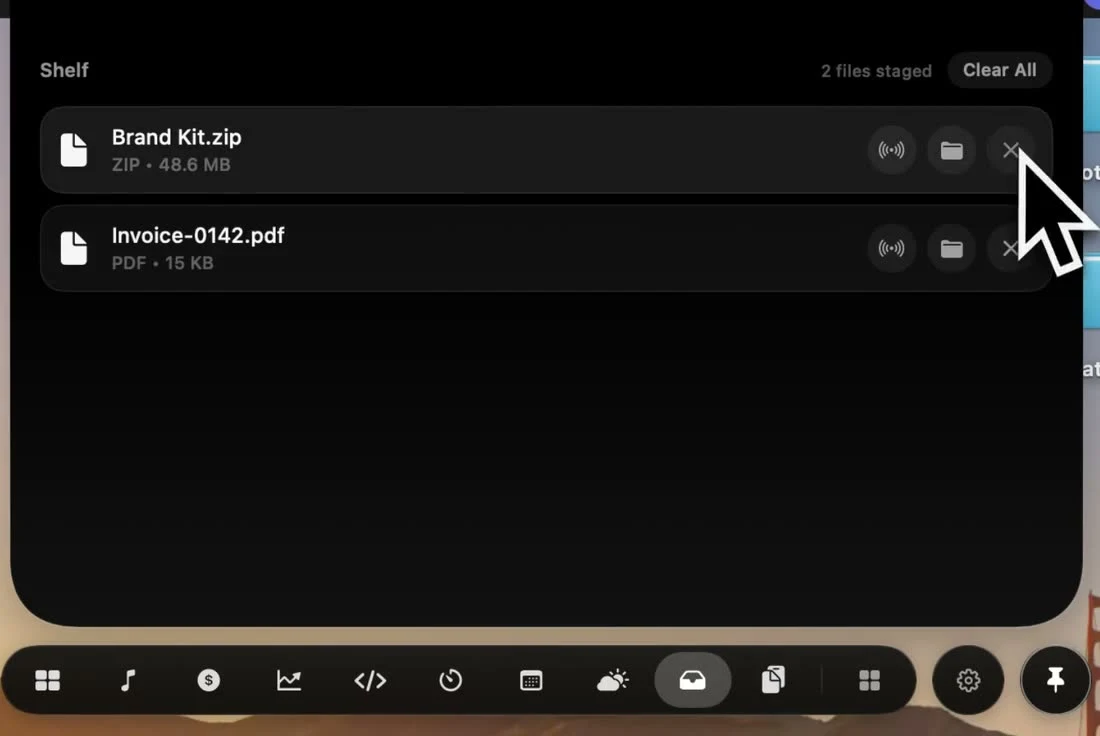
A Mac file shelf is a temporary staging area for files you are moving between apps. In NotchPop, drag files onto the notch and choose Keep, or open Shelf and choose Add files. Select files to copy, AirDrop, reveal in Finder or convert supported images locally. The shelf also works in a floating island on compatible Macs without a physical notch.
When a file shelf helps
A shelf is useful when the file you need and its destination are not visible at the same time. You might have a screenshot in Finder, a PDF in Downloads and a browser form on another workspace. Staging the files first lets you bring the destination into view before sending them on. The shelf gives that in-between step a predictable place at the top of your screen.
NotchPop's Drop Shelf is one of the tools in its productivity island. You can add files, switch to another app and return to the shelf when ready. You do not have to keep a Finder window arranged beside every destination. It is a convenience for files in transit, while Finder remains the place to organize the folders where those files belong.
Treat the shelf as a working list rather than an archive. Keep the originals in a known folder and use your normal backup process for anything important. An item visible in a tray is not evidence that you have made an independent backup. This matters most when working with removable drives, temporary downloads or files whose source you intend to rename or move.
Add your first files
- Open NotchPop on an Apple Silicon Mac running macOS 14 or later. The app can use a physical notch or a floating island.
- Drag a harmless test file from Finder onto the island. Choose Keep when the drop actions appear.
- Open Shelf and check the file name and type. Alternatively, choose Add files… in Shelf to select files with the file picker.
- Bring your destination app or upload field into view. Drag the item out of the shelf into a destination that accepts files.
- Check the destination received the intended file, then remove the shelf entry when it is no longer useful.
Begin with one local image or PDF so there is no ambiguity about which item was added. Once the basic path works, try a small group. Apple's drag-and-drop guide explains the underlying pointer interaction. The destination app still decides whether it accepts the dropped file type.
If you are using an external monitor, practice the same drop on the floating island there. Our no-notch setup guide explains why you do not need a MacBook camera cutout to use the tools. The software panel supplies the target; the hardware notch itself does not store files or perform the transfer.
Select several files deliberately
Shelf includes selection circles beside its file entries. You can also Command-click to add items to the selection, Shift-click for a range or choose Select all. The selection count helps you check how many files will be included before invoking a bulk action. Choose Deselect all when changing tasks so an earlier selection does not accidentally become part of the next batch.
The selected-file actions include Copy, AirDrop, Show in Finder, supported image conversion and Remove selected from Shelf. Copy puts the selected files on the clipboard so you can try pasting them into an app that accepts files. Show in Finder takes you back to the source location, which is useful when the name alone is not enough to distinguish similar screenshots.
For example, stage a PDF and two images for an email, inspect the selection count, then copy or drag the files into the draft. Check the attachments before sending the message yourself. A shelf reduces window juggling, but it does not check whether you selected the right client's document or whether your destination has an upload-size limit.
Choose the action that fits the destination
| What you need | Shelf action | What to check |
|---|---|---|
| Attach or upload a file | Drag out, or Copy then paste | The destination accepts that file type |
| Locate the original | Show in Finder | The source file is still available |
| Send to a nearby Apple device | AirDrop | The recipient appears and accepts the transfer |
| Use a file location in another tool | Copy path from the drop actions | The receiving tool expects a path, not an attachment |
| Change an image format | Convert a supported image | The resulting format suits the destination |
A file path is text describing a location. It does not transmit the file to another person. If you paste a local path into a message, the recipient generally cannot open your Mac's local storage from it. Use an actual attachment or an appropriate sharing method when someone else needs the contents. Copy path is better suited to local tools that ask for a file location.
Likewise, a successful drop onto the shelf and a successful upload are separate events. Let the destination finish its own upload or import, then inspect its result. If a website rejects a file because of its type or size, staging it again will not change those constraints. Choose an accepted format or the destination's own upload controls.
Convert an image on your Mac
NotchPop can take JPEG, PNG, HEIC, TIFF or WebP images and convert supported images to JPEG, PNG, HEIC or PDF. Choose the conversion action for the image you want to change. Processing happens on your Mac; the image does not need to be sent to an online converter. Review the generated output before using it in a document, upload or message.
Choose a format for a concrete reason. A website may request JPEG, a design handoff may require PNG or a document workflow may ask for PDF. Check the destination's instructions before converting a batch. A new extension does not by itself guarantee the image dimensions, visual appearance or file size that the recipient expects.
Keep an original until you have checked the converted result. Inspect a detailed or transparent image carefully in the output format you chose. Use a dedicated image editor when you need cropping, color adjustments or export controls beyond the shelf's conversion action. This tool handles a quick format change as part of moving a file; it is not presented as a full photo-editing workflow.
Read the result of a batch conversion
Bulk conversion can include a mixture of supported images and other files. Shelf reports the number converted, any failures and any non-images skipped. Read that result before assuming the whole selection became the requested format. An unsupported file remaining unchanged is different from a supported image failing to convert.
Converted outputs are added back to Shelf and the originals are kept. Inspect the file names and formats before choosing the batch to send onwards. If your original selection contained three images and a document, count the successful outputs rather than simply selecting everything in the tray again. Otherwise you may attach both originals and converted versions when you only intended one set.
The conversion actions are disabled while a conversion is in progress. Let the operation finish before trying another format or changing the same selection. If a result reports a failure, test that image alone and confirm the original still opens. Include the input format and chosen output in a support report, along with the visible result message.
For a concrete example, suppose an upload form accepts JPEG and your working folder contains HEIC images plus a PDF. Select the images, convert to JPEG, then choose the generated JPEG entries for the upload. The PDF needs its own accepted destination. This keeps conversion, selection and upload as three explicit steps you can verify, rather than assuming one bulk action completed the handoff.
Review a project handoff
Before sending files to someone else, use Show in Finder if similarly named entries are hard to distinguish. Open the file when you need to inspect its actual contents. Confirm the recipient or destination separately from the selection count: three selected files can still be the wrong three files. Remove stale entries after the handoff so they are less likely to join the next batch.
A shelf can organize the intermediate step, but it cannot determine which document version is approved for sharing. Keep the authoritative version in your project folder and use the tray for the copies or references involved in the current task. This is especially helpful when exporting several revisions from a design or writing app during the same session.
AirDrop and clean up the shelf
Select a file and choose AirDrop when sending it to a nearby Apple device. NotchPop opens the system sharing flow; choose the intended recipient and complete that interaction. A recipient missing from the system sheet is a sharing or device-availability problem to investigate there. Adding the same item to the shelf again is unlikely to make a device appear.
After a task, use Remove from Shelf, Remove selected from Shelf or Remove all from Shelf as appropriate. These controls remove shelf entries. They are separate from deleting the originals in Finder. Read the action label carefully and verify the source location when tidying important files. A short shelf is easier to inspect than a tray full of unrelated assets from previous projects.
A useful habit is to stage files for one handoff at a time: collect the inputs, choose the destination, complete the transfer and clear the working list. Keep project organization in your actual folders. If the next task needs snippets or reference text instead of files, the clipboard history guide covers the separate tool for recent copies and pinned items.
Troubleshoot a drop or file action
- Nothing appears on the shelf: try Add files… with one local file. This separates a pointer-drop issue from a file-access issue.
- The file appears but will not open: locate the original in Finder and check that its drive or source location is still available.
- The destination refuses the drop: try its file picker and confirm it accepts that format. Not every text field accepts attachments.
- A batch contains the wrong files: deselect everything and select the intended entries again, checking the displayed count.
- Conversion is unavailable: start with one of the supported image types. A PDF output option does not mean every input is an editable image.
- AirDrop has no recipient: inspect the system sharing sheet and the receiving device, rather than repeatedly adding duplicate files.
For a support report, include the app version, macOS version, input file type and the action that failed. Try to reproduce it with a non-sensitive example. Say whether the source was local, on an external drive or supplied by another app. You do not need to send private documents to demonstrate that a PNG drag or a selection action fails.
Decide whether a shelf fits your workflow
Try the shelf with a task you already repeat: collecting screenshots for an issue, attaching documents to a draft or moving assets into a design tool. Compare the steps with your usual Finder arrangement. If both windows are already visible, a direct drag may be just as convenient. The shelf is most useful when you want a staging point while changing windows or workspaces.
Drop Shelf is included in NotchPop's seven-day trial, alongside music controls, clipboard history and the other built-in tools. A one-Mac license costs $3.99 once; see pricing for the multi-Mac options. We publish this guide as the makers of NotchPop. The broader notch app comparison links to other developers' published feature information if you want to compare file workflows.
Sources and editorial notes
Published by NotchPop, the maker of the app. macOS instructions and third-party claims are linked to the sources below. Settings and offers can change between versions. Read our editorial approach or send a correction.
