
Edited by Tejas Telkar · Published · Updated
Short answer
NotchPop's Media Island puts Spotify and Apple Music controls in your Mac notch or floating island. Start playback in your music app, then open Media Island to see artwork and track progress, pause, skip, adjust volume or choose an available audio output. NotchPop requires Apple Silicon and macOS 14 or later; its seven-day trial includes the media controls.
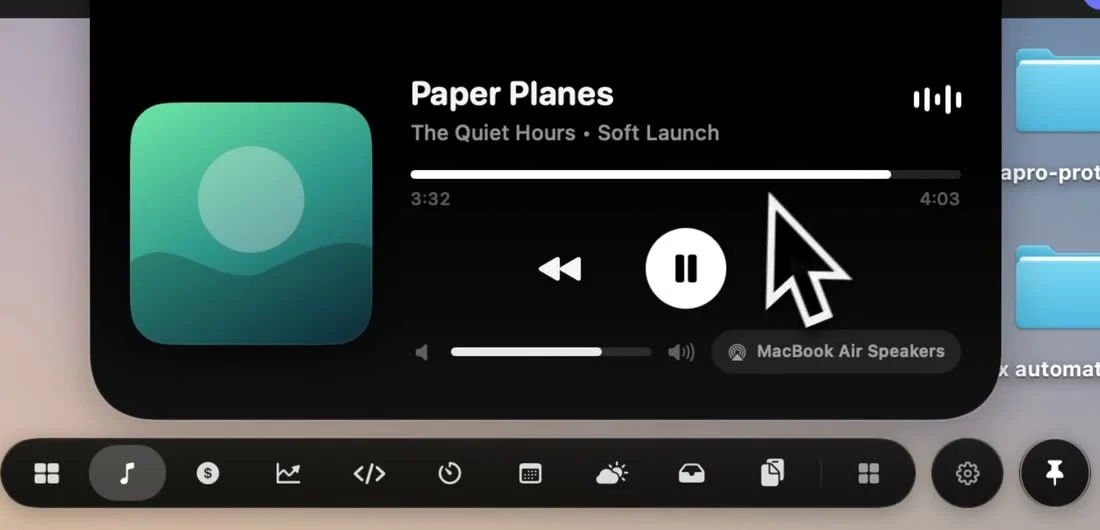
What a notch music controller does
A notch music controller gives you a small place to manage playback while another app stays in front. The music still comes from Spotify, Apple Music or another media app. NotchPop reads the available playback information and presents controls at the top of your screen. It does not replace your music library, supply a streaming subscription or download songs for you.
That distinction helps you choose the right tool. Use your music app to browse an album, organize a playlist or decide what to play next. Use Media Island for the repeated actions that interrupt your work: checking a song title, pausing before a call, skipping a track or changing where the sound comes out. You can return to the larger player whenever you need its full library interface.
The physical camera notch is optional. On a compatible display without one, NotchPop draws a floating island. This makes the same workflow available on an Apple Silicon desktop Mac or external monitor. See our guide to using a notch app without a notch for the difference between the hardware cutout and the software panel.
Set up Spotify or Apple Music in the notch
- Check your Mac uses Apple Silicon and runs macOS 14 Sonoma or later. Download NotchPop from its website and open the app.
- Open Spotify or Apple Music and start a track there. Begin with one player so the source of the playback information is easy to identify.
- Open the NotchPop island and select the music tool. Look for the current title, artwork and progress rather than a sample from the website demo.
- Try Pause, resume playback and skip a track. If macOS asks for permission to control your music app, review and allow that specific request if you want the integration.
- Return to your work and open the island again when you need a control. Choose an output only after the intended headphones or speakers are connected.
NotchPop's current download is self-signed and is not Apple-notarized. Follow the first-open information in the setup guide if macOS asks you to approve it. Keep that installation step separate from a later Automation permission: approving an app to open and allowing it to control a player are different macOS decisions.
Choose between a notch panel and Apple's MiniPlayer
Apple Music already has a compact player. Start a song, then choose Window > Switch to MiniPlayer. In Music settings, the Advanced section includes an option to keep that window above other windows. Apple's MiniPlayer instructions describe its artwork, queue and other controls. Try the built-in option first if Apple Music is the only player you use.
A notch panel fits a different arrangement: your quick controls share one place with files, a calendar and a focus timer. You may prefer it if you switch between music sources or already use the island for other daily tasks. You may prefer MiniPlayer if you want a dedicated music window in a position of your choosing. Neither arrangement requires you to give up the full Music app.
| Your task | A useful place to start |
|---|---|
| Browse your library or organize playlists | The original Spotify or Apple Music app |
| Keep an Apple Music player in a separate window | Apple Music MiniPlayer |
| Pause or skip while using NotchPop's other tools | Media Island |
| Compare several notch apps before choosing | Mac notch app comparison |
Switch between speakers and headphones
NotchPop includes a native CoreAudio output picker. Open Media Island and choose an available output when moving between your Mac's speakers, connected headphones or another audio device. The picker works with outputs macOS exposes; it cannot make an offline speaker or an unpaired headset available. Connect the device first and check its availability in macOS if it does not appear.
Playback controls and audio routing solve different problems. A track can be playing correctly while sound is routed somewhere you cannot hear. Before restarting the music integration, check the output, the system volume and the player's volume. When several audio devices have similar names, select one deliberately and listen for the result before trying another.
An output change affects your listening setup, so test it outside a meeting first. If you need a more involved audio route, use the appropriate macOS or device settings. The island is a convenient entry point to available outputs; it is not a replacement for every configuration offered by your audio hardware.
Understand support for other media apps
Spotify and Apple Music have the fuller integration described on the feature page, including volume controls. NotchPop can also show playback from other apps, such as browser audio, with play, pause and skip where the source exposes those actions. Do not assume every player supplies identical artwork, timing or transport controls. A livestream, for example, is different from a finite album track.
When diagnosing the integration, use an ordinary song in one supported music app first. If that works but a particular browser tab behaves differently, you have narrowed the issue to the source instead of the entire island. Pause competing media sessions and start the intended source again. Then compare the displayed title with the player you meant to control.
The island does not promise library search, queue editing or lyrics for every provider. Check the current feature list and release notes for supported behavior. Keep the provider's own player available for actions outside the compact controls, especially account settings and content that requires a subscription.
Read Playing Next and lyrics
The current media interface has Playing Next and Lyrics tabs beneath the main player. Opening a tab adds its detail pane below the playback controls. Select the tab again when you want to close that pane and return to the compact view. The player name shown beside the tabs helps you check which source those details refer to.
Playing Next is a queue view, rather than a promise of full playlist editing. The pane lists the upcoming track titles and artists that the active player makes available. When that information cannot be read, NotchPop displays an explanation instead of inventing a queue. The message can offer Open player so you can use the source app directly.
Some queue integrations require Accessibility permission to read the player's interface. In that case the pane explains the requirement and offers Allow Accessibility. Decide whether you want that additional capability. Playback working in the main panel does not prove the queue has the access it needs, and an unavailable queue does not by itself mean the pause button is broken.
Lyrics are looked up through LRCLIB, which is linked in the pane. This is an online feature, distinct from local file conversion or clipboard processing. Lyrics availability depends on the track and the lookup result. The pane can show a no-lyrics message, identify an instrumental result or explain a connection failure. Use its refresh button to retry when appropriate; repeated retries cannot create lyrics that the provider does not have.
For troubleshooting, keep the main player's title and the open detail pane in view. If the song changed but the details did not, refresh the pane and check the player identity again. If only the detail pane fails, report whether it was Playing Next or Lyrics, what its message said and which player was active. That is more precise than treating every music-related issue as the same integration problem.
Check the controls before a meeting
Practice the small sequence you will actually use: pause the track, choose the output you want, then return to the meeting app. Test it once outside a call so you know where each action lives. Changing playback and changing an output are separate choices; one does not confirm that your meeting app has selected its intended microphone or speaker.
Keep your meeting app's own audio controls available. If you need to change a call device or diagnose echo, start with the settings for that call. Media Island is useful for controlling your music around the call, while the meeting application remains responsible for its own audio setup. After the call, resume the intended player and confirm the title rather than assuming the same source stayed active throughout.
Use music controls during a focus session
A practical starting point is to pick a playlist before beginning work, start a focus timer, then use the island only for small playback changes. This keeps choosing music separate from doing the task. If every skipped track sends you back into browsing, the compact controller is not helping that particular session; settle on a queue first or pause the music.
For a writing session, you might keep the editor in front and pause from the island when reviewing a recording. For a design task, you can use the file shelf to stage assets while the same app provides music controls. These are examples of arranging the tools, not claims that a particular soundtrack or timer will improve everyone's concentration.
Keep the initial setup small. Enable the music integration you need, test it with your usual headphones and add other tools only when they solve a repeated task. The tools catalogue shows the available capabilities, while the interactive website demo uses sample data and does not control playback on your actual Mac.
Troubleshoot missing tracks or unresponsive controls
- No current track: start playback in Spotify or Apple Music and reopen Media Island. An idle player may have no current information to display.
- The wrong title appears: pause other music apps or browser tabs, then start the intended player again. Test with one active source.
- A control does nothing: check the relevant macOS Automation permission and try the same action directly in the player.
- There is no sound: inspect the selected output and both system and player volume before changing permissions.
- A device is missing: connect it and check whether macOS itself lists it as an available output.
- One source lacks artwork or progress: compare it with an ordinary track in a fully supported player. The source may expose less information.
If the problem persists, report your NotchPop version, macOS version, player name and the exact action that failed through feedback or support@notchpop.com. Say whether direct playback still works and whether the issue happens with one player or several. A reproducible sequence is more useful than sharing private account details or the contents of your listening history.
Try the workflow before choosing a license
The seven-day trial includes Media Island and the other built-in tools. Test the actual combination you care about: your usual player, an output change, a pause before a call and the display where you spend most of your time. If your priority is a feature outside the published controls, ask about it before treating the app as a match.
NotchPop starts at $3.99 once for one Mac, with two-Mac and five-Mac options on the pricing page. There is no subscription for NotchPop itself; a streaming provider's account and subscription remain separate. We make NotchPop, so this guide explains our own product. For other choices and their published capabilities, read the best Mac notch apps guide.
Sources and editorial notes
Published by NotchPop, the maker of the app. macOS instructions and third-party claims are linked to the sources below. Settings and offers can change between versions. Read our editorial approach or send a correction.
