
Edited by Tejas Telkar · Published · Updated
Short answer
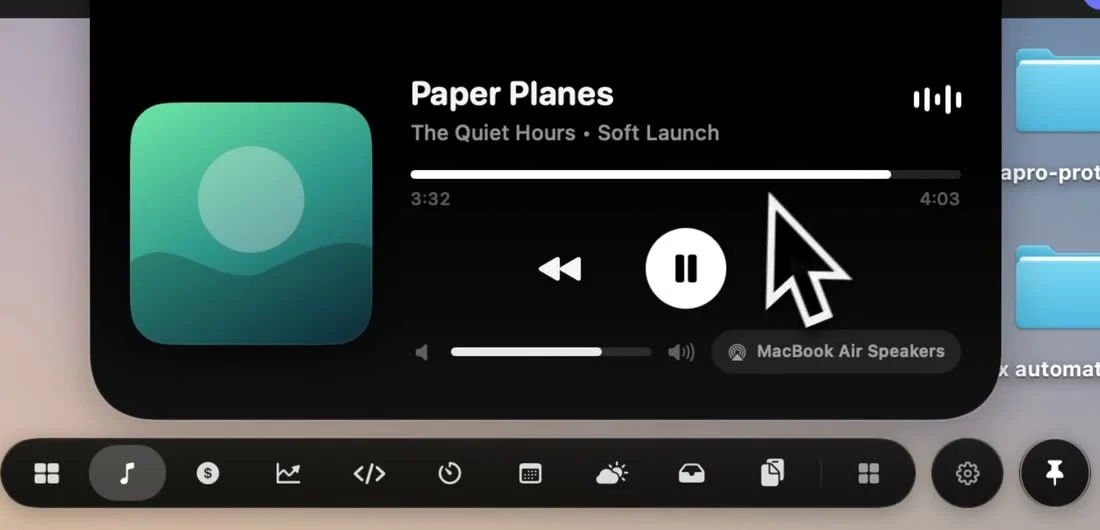
Start a track in Spotify on your Mac, then open NotchPop's Media Island. It shows supported now-playing information and playback controls. Spotify remains the player and account provider; NotchPop supplies a compact remote at the notch or floating island.
Start with Spotify playing locally
Open Spotify and choose a track you can play normally on this Mac. Check that sound comes from the expected speakers before adding another control surface. This gives you a known starting point: if Spotify itself cannot play, changing the notch interface will not repair the account, connection or unavailable track.
- Launch NotchPop on an Apple Silicon Mac with macOS 14 or later.
- Start playback in the Spotify Mac app and leave it running.
- Open the island and select Media Island. Look for the same track and artist.
- Pause once from the island, then resume. Check the player responds before trying other controls.
Use a remote for the small actions
The island is useful when a document, editor or browser occupies the screen and you only want to pause or skip. Artwork and track progress help you identify what is playing without switching windows. Keep Spotify itself available for library management, account settings and choosing a different playlist; a compact remote is a different part of that workflow.
For a practical test, write for a few minutes with Spotify behind your work, pause before a call, and resume afterward. Use the audio-output guide if the track is correct but sound comes from the wrong device. Changing an output is separate from changing the Spotify account or selected music.
Check missing or unexpected track information
If another media app is active, stop it temporarily and restart playback in Spotify. Confirm whether the information is absent, delayed or showing a different player; those are different symptoms. Try the desktop app before assuming a browser tab or remote-device session will expose identical controls.
When playback works but the island is empty, follow missing music information. Record the app and macOS versions and whether Spotify is playing locally. Do not include account passwords or listening history in a support message. NotchPop's trial lets you test the actual player and display you use before choosing a license.
Sources and editorial notes
Published by NotchPop, the maker of the app. macOS instructions and third-party claims are linked to the sources below. Settings and offers can change between versions. Read our editorial approach or send a correction.
